
Knowledge Base of Instructional Resources and Production Services
Film Program at the University of Central Florida
Registered Access to Network Storage
Overview
This article explains how to connect from a workstation on the local network to a media store using a username and password. This enables specialized access to media for advanced course work or projects.
For general access of the Film program’s media store, please visit the Media Network Storage article for instructions.
Registered Access to Media Network Drive
Students enrolled in FIL 4566C Editing II and FIL 4535C Sound Design for Film II need to access dailies and other limited access content to complete advanced media assignments. To do this, students must login using a Registered User’s name and password that is supplied to them by their instructor-of-record. Below, are the steps on how to connect to a media network drive from a local workstation.
Login to Media Store
Connect to Server
- In Finder (not while engaged with another application), PRESS Command (⌘) and K at the same time.
- Or In the Top Menu, NAVIGATE to Go>Connect to Server.
- In the prompt, TYPE in the server’s IP address with smb:// proceeding it:
Current IP Address for Media Store A (click to reveal):
smb://10.101.170.118
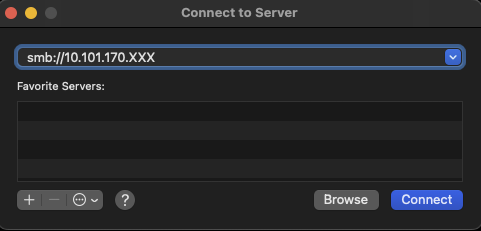
- CLICK Connect
- This should launch a new Login Window
Login
- Under Connect As, SELECT Registered User.
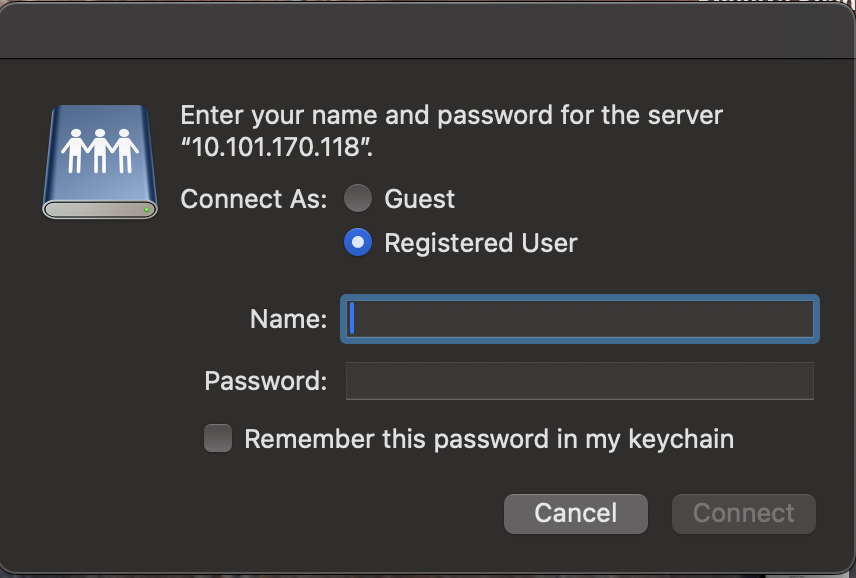
- ENTER the Registered User’s Name and Password provided to you by your instructor-of-Record or Film Production Services staff. Registered User’s names and passwords are case sensitive.
- SELECT Connect.
- The network drive you are trying to access should mount. Typically it will have the same name of the course or project you are trying to access.
Additional Notice
Media Network Storage is only available to devices connected to the local network on the UCF main campus. Unless when using a personal device, do NOT select Remember this password in my keychain when connecting.