
Knowledge Base of Instructional Resources and Production Services
Film Program at the University of Central Florida
Zeus Portal Equipment Request
Overview
To reserve gear for assignments it may be necessary for you to utilize the Zeus Now Portal to request your gear. Below is a step-by-step guide on how to complete that process.
Username and Passwords
Zeus login credentials will be emailed to you by Film Production Services from filmoperations@ucf.edu. If you cannot locate this email, search your inbox for: “Important Information about the Zeus Portal“. If found in Junk Email, please report these emails as ‘Not Junk’.
Passwords change every semester, are not customizable, are unique to Zeus, and not associated with your UCF NID.
1. Logging in to Zeus Portal
Once you have obtained your username and password you may log in to the portal via the link below.
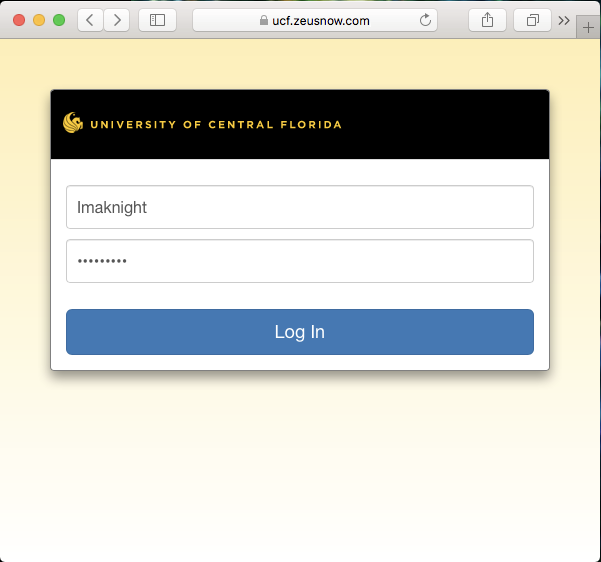
You will be directed to the log in screen, where you will enter your username and password, and hit “log in”.
2. Creating a Reservation Request
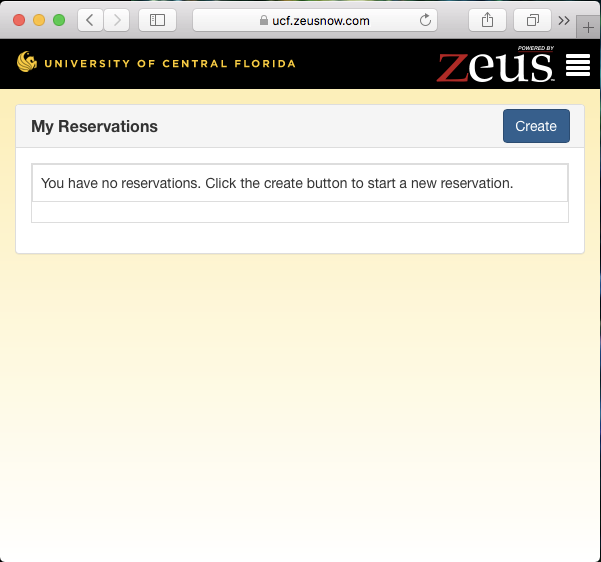
After logging in, click “create” to initiate the request process
All requests must be made during either the Weekend Checkout Block or the Weekday Checkout Block.
| Weekend Checkout Block | Friday: Checkout Day Equipment Room Hours: Open 9 to 5 | Saturday/Sunday: Shooting Equipment Room Hours: Closed | Monday: Checkin Day Equipment Room Hours: Open 9 to 5 |
| Weekday Checkout Block | Tuesday: Checkout Day Equipment Room Hours: Open 9 to 5 | Wednesday: Shooting | Thursday: Checkin Day Equipment Room Hours: Open 9 to 5 |
Click the calendar icon to select the time and date that you would like to request for check out (pick up), and check in (return).
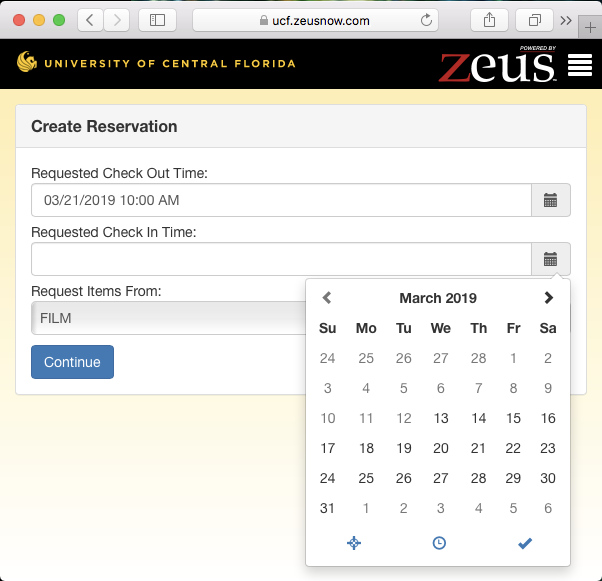
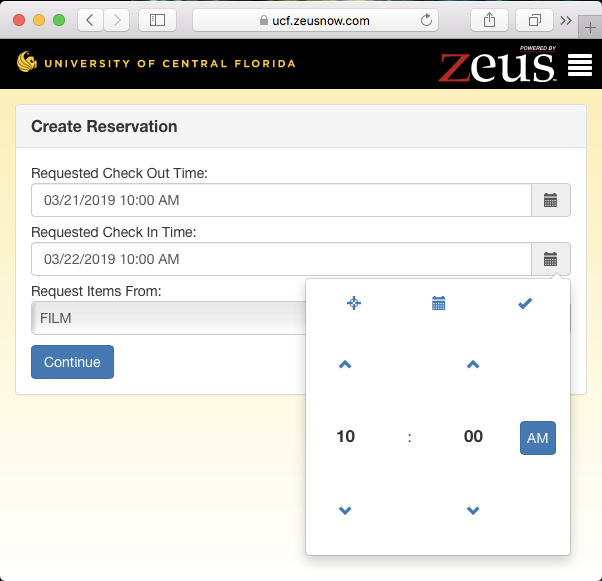
Time will be selected in another window.
3. Booking Assets from the Equipment Catalog
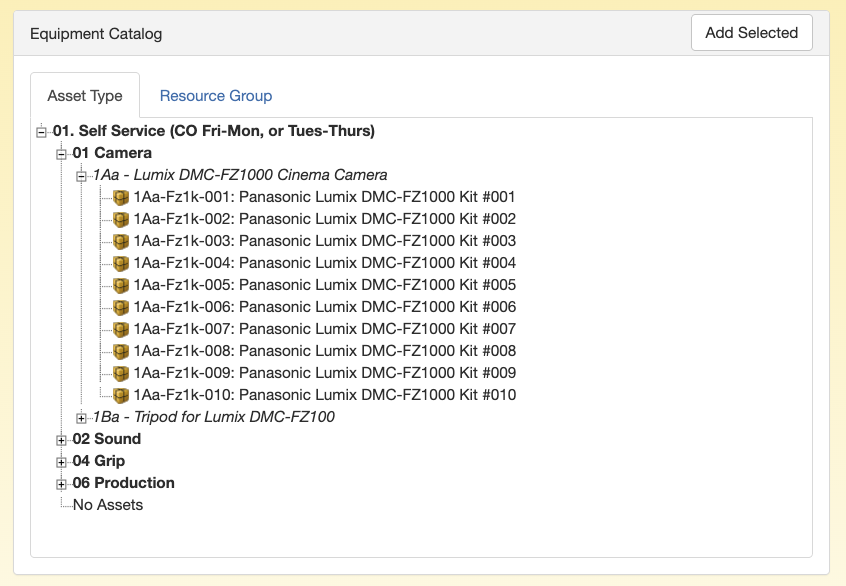
In the “Equipment Catalog” section, select the “Asset Type”
Expand the drop drown for each type of equipment you are requesting for, this will display everything available for you to check out for completing media assignments.
Select one item or kit at a time and click “Add Selected”.
Items and kits added will appear in the “Booked Assets” section.
You can expand drop downs under kits to view all items included in the kit.
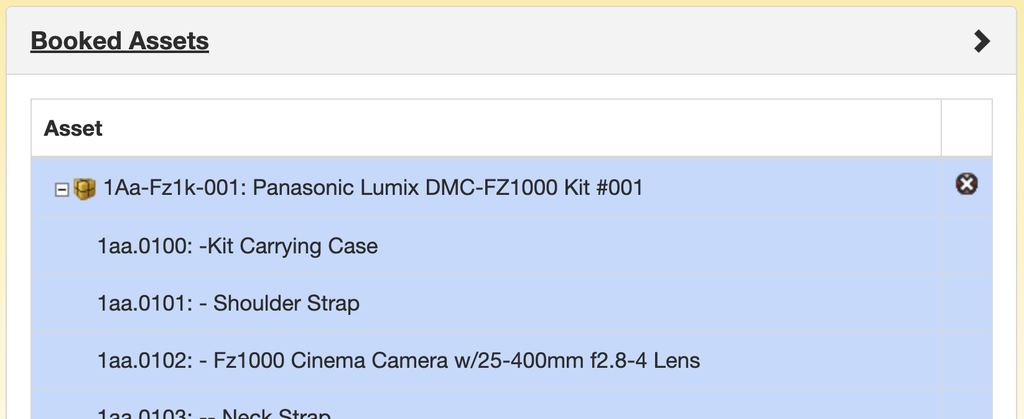
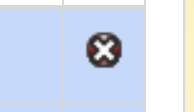
To remove assets, click on the “Red X” next to each kit in the Booked Assets Field.
During rush periods equipment may fully booked.
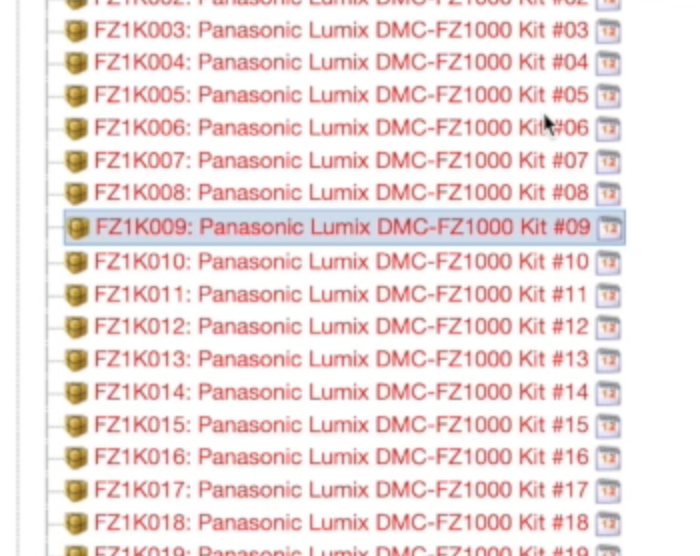
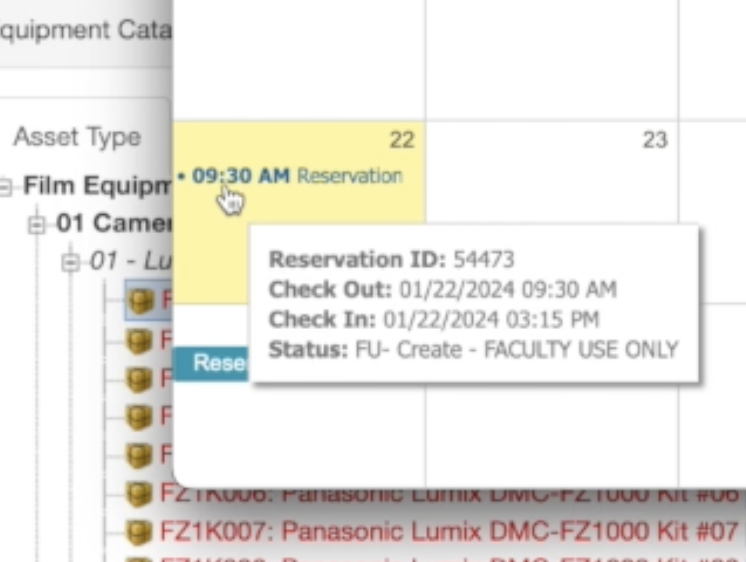
Selecting the Calendar next to the Kit can assist when trying to schedule during these times.
4. Reservation Request Completion
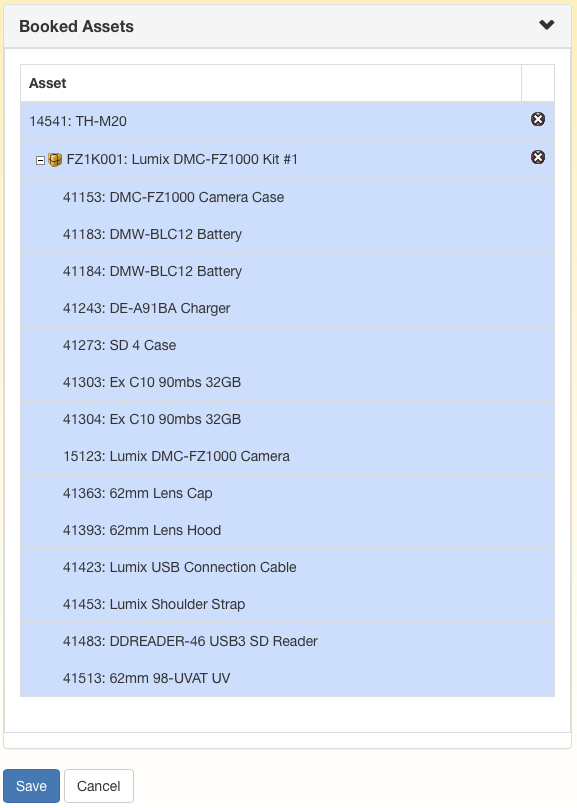
After reviewing your selections, click “Save”
After saving the booked assets you will be navigated back to the “My Reservations” page, where you should see a notification that your reservation request has been successfully created.
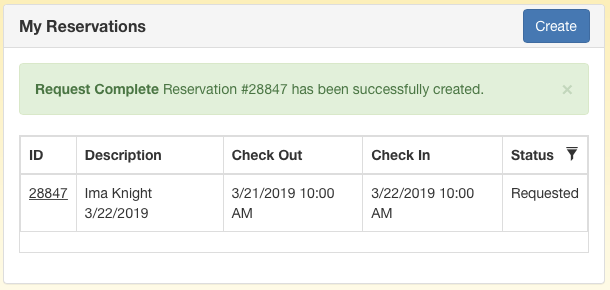
You will also receive an email confirming your request submission, and contains your order number and requested check out appointment.
Processing and Approval
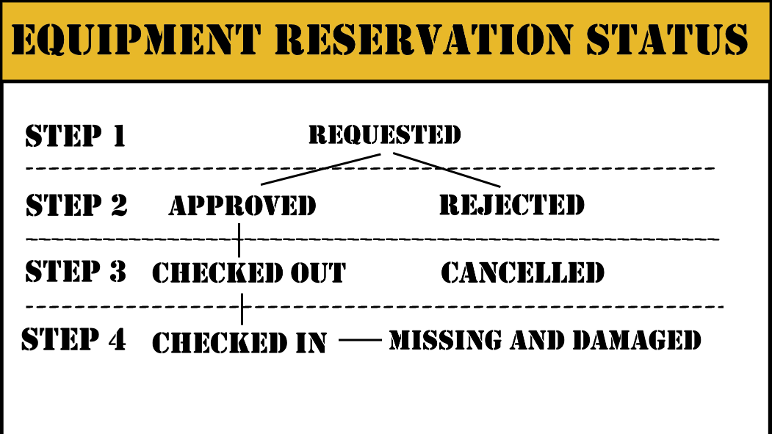
Reservations will go through an approval process through Film Production Services.
Once your order has been reviewed and approved by Film Equipment Room staff, you will receive another email confirming that your request has been approved, and that provides the scheduled reservation details.
Note the reservation times may changed.
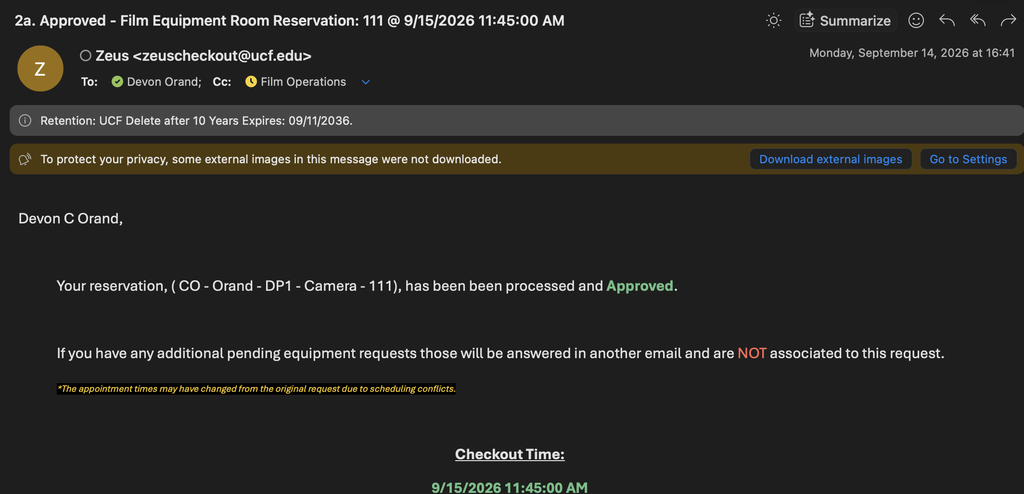
Make note of your reservation number, and check out/in appointment times. You are responsible for arriving punctually for your scheduled check out/in appointments. Failure to do so without notice may result in disciplinary action.
It may also be important to speak with us directly. Please scan this QR code to save a contact card for the Film Equipment Room.
If you need to make changes to your appointments or reserved equipment, or have any questions about the reservation process, please contact the Film Equipment Room.